
Web Accessibility
Beginning April 2026, compliance with WCAG 2.1 AA standards will become a legal standard. We are working to ensure our sites meet those standards, and provide tools and resources for faculty and staff to also comply with these requirements.
If you have questions or want to speak to someone, email us at our shared mailbox cehdmarcom@tamu.edu.
Topics on this page
Headings
Heading Rules
- One H1 per page (page title).
- Use H2 for major sections, H3 for subsections.
- Don’t skip levels (e.g., avoid H1 → H3).
- Headings should be meaningful, not used just for styling.
Visual Example

Images
Images That Need Alt Text
Informative Images
Images that convey information not already given in text. Alt should briefly describe the content or meaning.
Examples

Photo of Research Team in the Field

Headshot on a Profile
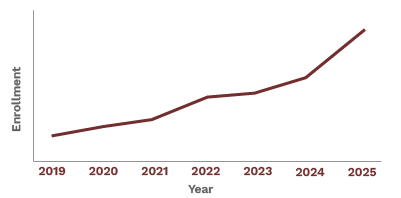
Graph Showing Enrollment Growth
Functional Images
Examples
Magnifying Glass Icon Used For Search
Social Media Icon That Links to Instagram
Conceptual or Educational Graphics
Examples
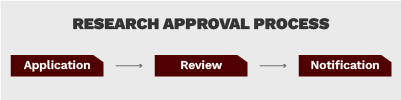
Flowchart of Approval Process
A Venn diagram comparing two teaching models
Brand or Organizational Images That Convey Meaning
Examples

College of Education & Human Development Logo
Images Showing a Specific Person, Place, or Event
Examples

Specific Individual and Setting
Images That Should Not Have Alt Text
When an image does not need alt text, use an empty alt attribute — alt=””.
Use Empty Alt Attributes For:
- Purely decorative elements (e.g., background flourishes, divider lines)
- Stock images used only for visual appeal
- Repetitive or redundant logos when the same text appears nearby
- Icons with visible text labels (e.g., a phone icon next to “Call Us”)
Color Contrast
Brand Color Contrast Checker
#500000
#ffffff
Video
Captions and Transcripts
- All videos must include accurate captions. Auto-generated captions in YouTube are a starting point, but review and correct them before publishing.
- Provide a written transcript or short summary directly on the page when possible.
- Follow official YouTube instructions for adding captions: Add subtitles and captions in YouTube.
On-Screen Text and Visuals
- Ensure on-screen text is large, high-contrast, and visible long enough for viewers to read comfortably.
- Avoid flashing or strobing content that exceeds three flashes per second.
Playback and Controls
- Never use autoplay—users must be in control of playback.
- For looping or background videos, include pause/play controls that are keyboard accessible.
- Provide a short text summary describing the visual content if it contributes meaningfully to the page.
YouTube Upload Best Practices
- Use a descriptive title and detailed video description to improve accessibility and search visibility.
- Choose high-contrast thumbnails and avoid text-heavy graphics.
- Ensure captions are enabled and verified before embedding videos on CEHD websites.
Buttons and Links
Links and Descriptive Text
- Use descriptive link text that clearly communicates what the user will find when the link is activated.
- Avoid vague phrases like
Click here
,Learn more
, orRead more
—they provide no context for users navigating with screen readers or by keyboard. - When possible, embed the link naturally into meaningful words within the sentence. For example: “Explore our scholarship opportunities for first-generation students.”
- If a link’s purpose is self-evident (for example, a labeled button or navigation item), additional wording is not necessary.
- For multiple links with the same visible text, ensure each link’s destination is unique or add an
aria-labelto clarify context for assistive technology.
Documents and PDFs
If there are specific reasons a PDF format is preferred (for example, printing requirements or layout considerations), please let us know. In many cases, we can replicate the same content on a web page while still meeting those needs.
When a PDF is necessary, ensure that:
- The source file (e.g., Word, PowerPoint, Canvas, InDesign) is built to meet accessibility standards before exporting.
- The exported PDF is then checked for accessibility in Adobe Acrobat using the built-in Accessibility Checker.
If a PDF is required, start by making the original document accessible (in Word, PowerPoint, or Canvas). Then use Adobe Acrobat’s Accessibility Checker to verify the exported PDF meets standards.